

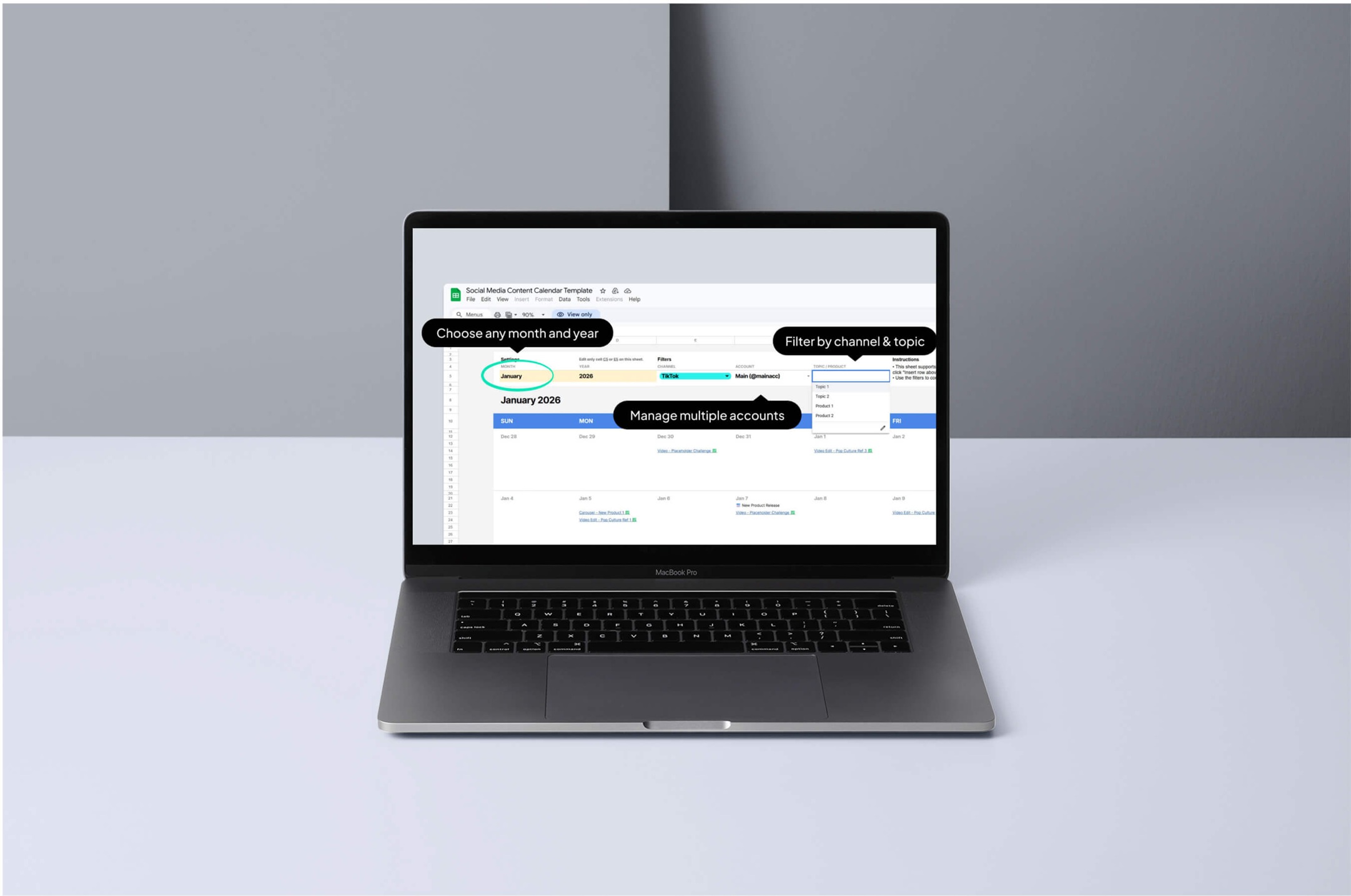
Whether you’re trying to plan and time your campaigns more effectively, struggling to juggle multiple accounts, or just want to post more consistently, a social media content calendar is the solution to your problems.
While the concept is pretty self-explanatory and seems deceptively simple, setting up your content calendar the right way is the difference between creating a powerful planner that will last you a lifetime vs. wasting hours on a spreadsheet that you’ll never even open after a few weeks. There are of course many subscription-based content calendar apps, but some of us may prefer the flexibility and cost savings of a spreadsheet-based content calendar built in Google Sheets (with the added convenience of tagging files and collaborators directly in GSuite).
However, designing a system that’s easy to use on a daily basis, yet robust enough to plan your content in detail can be a challenge. You don’t want too much data entry bogging down the already time-consuming process of posting across social platforms, but you also need a versatile tool that truly adds thoughtfulness and convenience and to your social media marketing strategy.
In this guide, we’ll walk you through how to build a content calendar that actually works for you, directly in Google Sheets.
If you’d prefer jump ahead, check out our Google Sheets Content Calendar template! We used this spreadsheet to help manage the growth of multiple accounts to hundreds of thousands of followers across multiple platforms (ie. YouTube, Instagram, TikTok, and more) — now we’re making our content management system available for everyone:
Here, we’ll show you how to use Google Sheets as a social media content calendar in just five easy steps.
(FYI: This article will show you how to use our Content Calendar spreadsheet template; if you’d like to skip the Google Sheets formula-wrangling, grab it here.)
How to plan your social media content in Google Sheets:
1. Confirm Google Sheets is the right planner for you:
Not everyone is built to use Google Sheets as a social media content calendar. If you’re an agency managing 10+ brands with multiple accounts, or want special features like post scheduling integrations, a software-based solution may be a better fit for you.
However, a Google Sheets-based content calendar can be an ideal fit for leaner social media teams with simpler requiremenets, those who post natively through social apps to maximize performance, or who find most software subscriptions too complicated and expensive for their needs. This is where nothing can truly beat the versatility and flexibility of a spreadsheet.
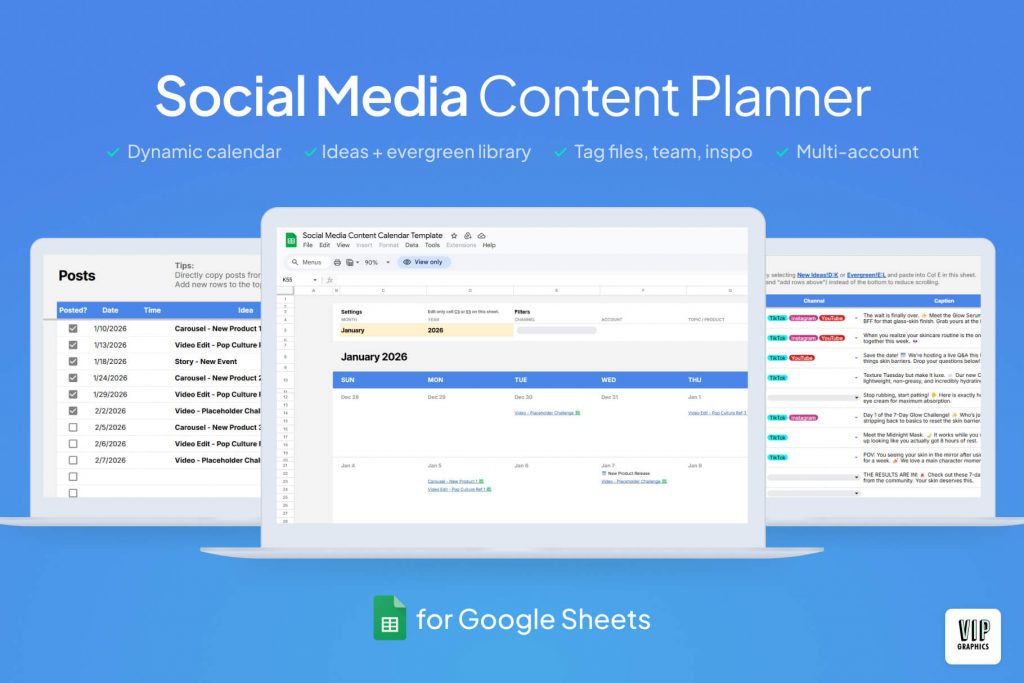
With Google Sheets (unlike Excel), you can easily set up integrations with online data sources (whether using Google Apps Script, or no-code tools like Zapier), which makes it ideal for marketers who might use tools like Supermetrics and Triple Whale to sync ad campaign data with social media performance.
2. Download the template (start with any month & year!)
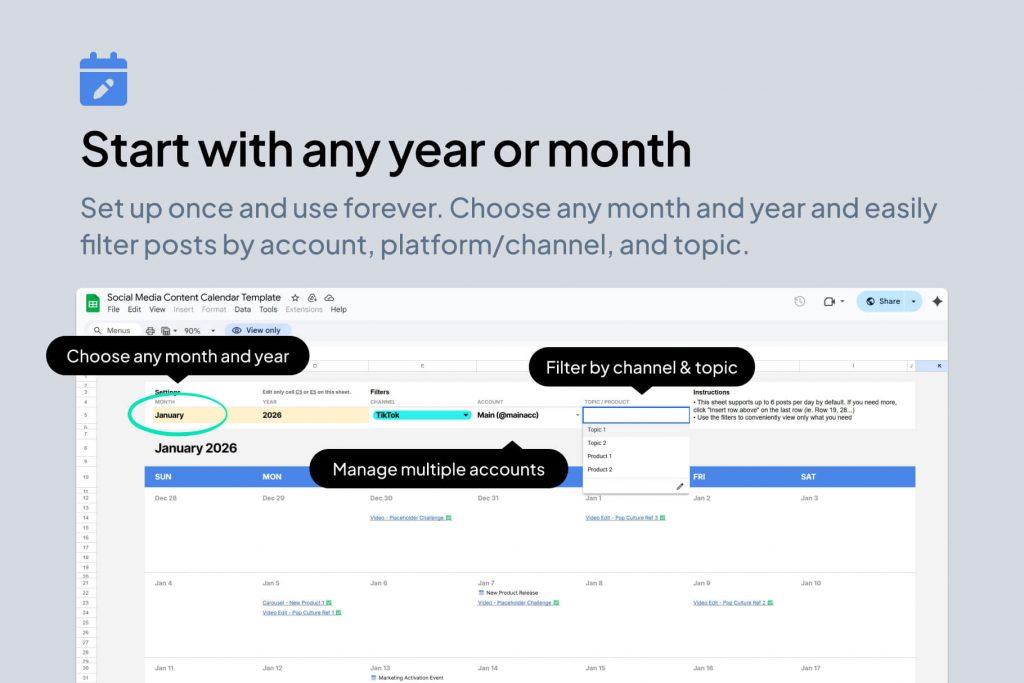
To start, you’ll want to make a copy of our Google Sheets Content Calendar template (if you haven’t already): simply open it up and select ‘File > Make a copy’ in the menu. Now, you’ll be able to edit the social media content calendar as your own in your Google Drive — saving you hours of designing your own spreadsheet and wrangling with formulas!
Our dynamic calendar template is set up so you can start with any calendar month and year, and continue to use in perpetuity (no hassle of setting up a new sheet annually).
3. Configure dropdowns
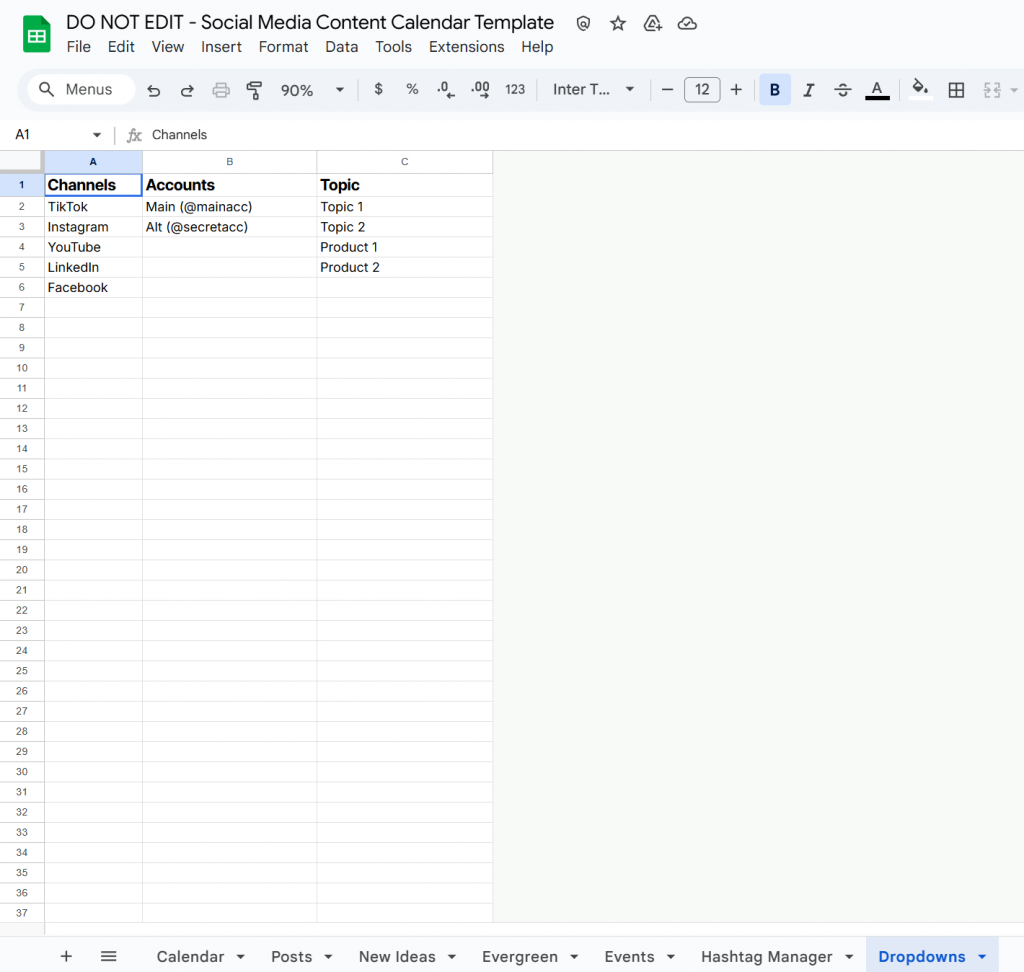
The first step is to edit the rows in the “Dropdowns” sheet in order to add the accounts/handles you manage, the platforms/channels (ie. TikTok, YouTube, Instagram, Twitter/X, Facebook, etc.) you regularly post on, and the topics you regularly cover.
The “Topics” column can really be whatever you want it to be: some may choose to use it to organize types of post (ie. Tutorial, UGC Repost, New Product Launch, Special Offer) or post formats (ie. Carousel, Short, etc.). For example: an artist may use “Topics” to segment posts by collection/album, whereas a consumer product business may use “Topics” to separate different product lines.
4. Add your post ideas and best-performers
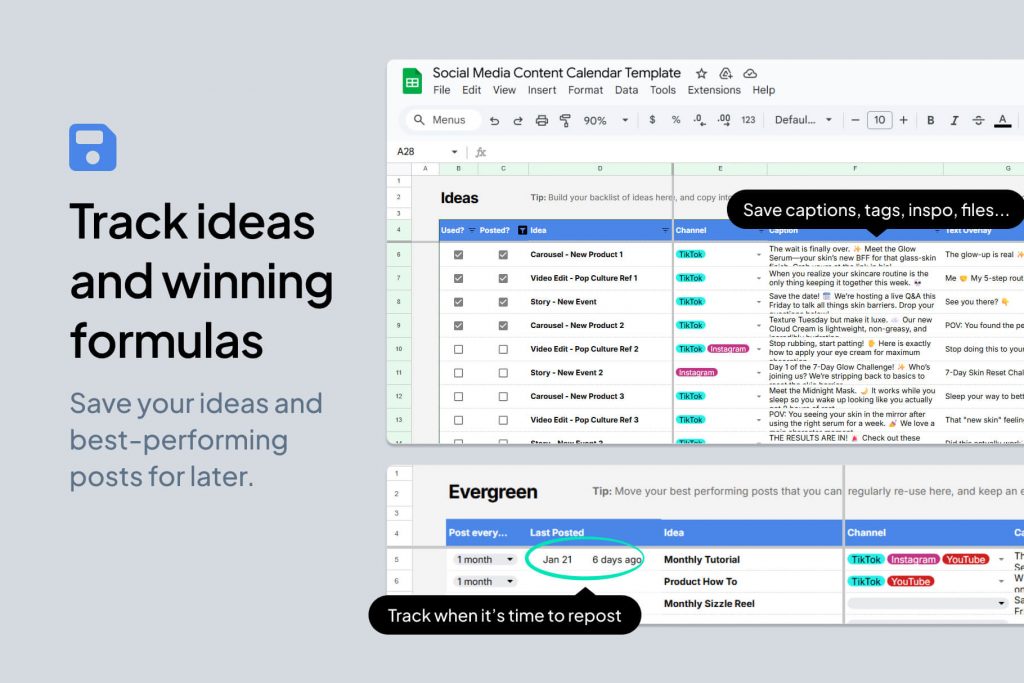
Rather than starting by populating the “Posts” sheet directly, we recommend you begin with the “Ideas” and “Evergreen” sheets.
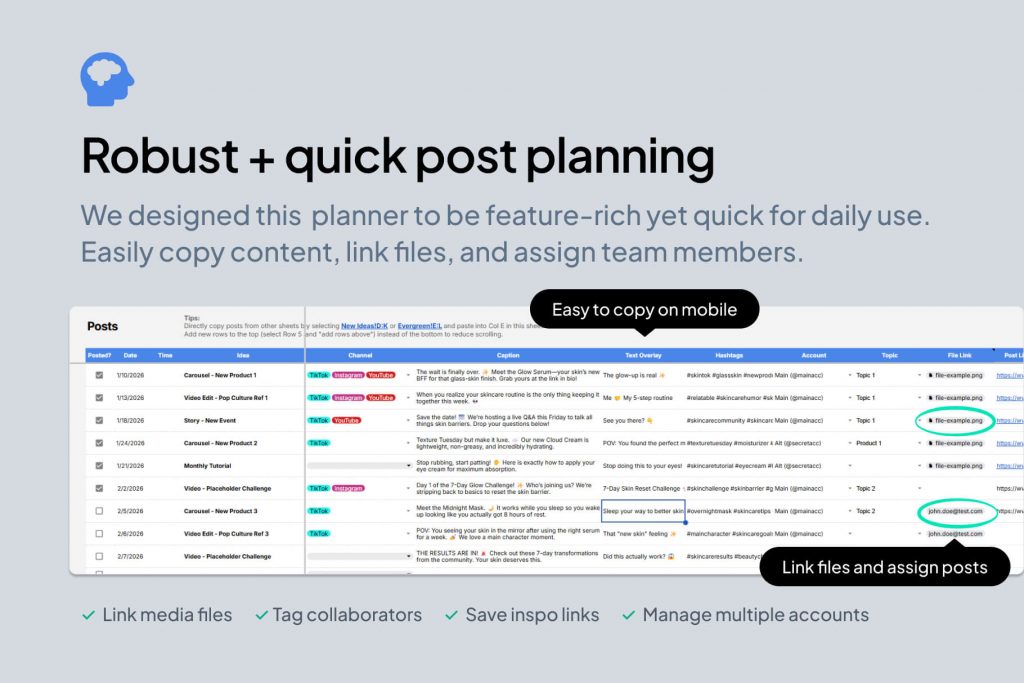
Use the “Ideas” sheet as your place to quickly dump new ideas on any device. This can beas simple as copying a TikTok/Instagram post you like into the final “Inspo” column, or you can plan in more detail and fill in the caption, overlay, and hashtags + tag your team member in the “File link” column to create a video/image per your specifications. We designed this spreadsheet specifically for ease of use: making it actionable and robust but without wasting time on superficial additional data entry.
On the other hand, the “Evergreen” sheet is meant to be a library of your best-performing reusable content. Use the first column of this sheet to plan how often you want to repost and the sheet will tell you when you’re nearing the right time to share it again.
5. Copy from “Ideas” and “Evergreen” into “Posts”
This sheet is conveniently setup so you can directly copy rows from the “Ideas” and “Evergreen” sheets into “Posts” when you’re ready to add them to the calendar. Simply copy, paste, and assign a date and time! Once a post is live, fill in the Post URL channel and it will be automatically checked off in the calendar and Postst tab.
6. (Optional) Add notable events to the calendar
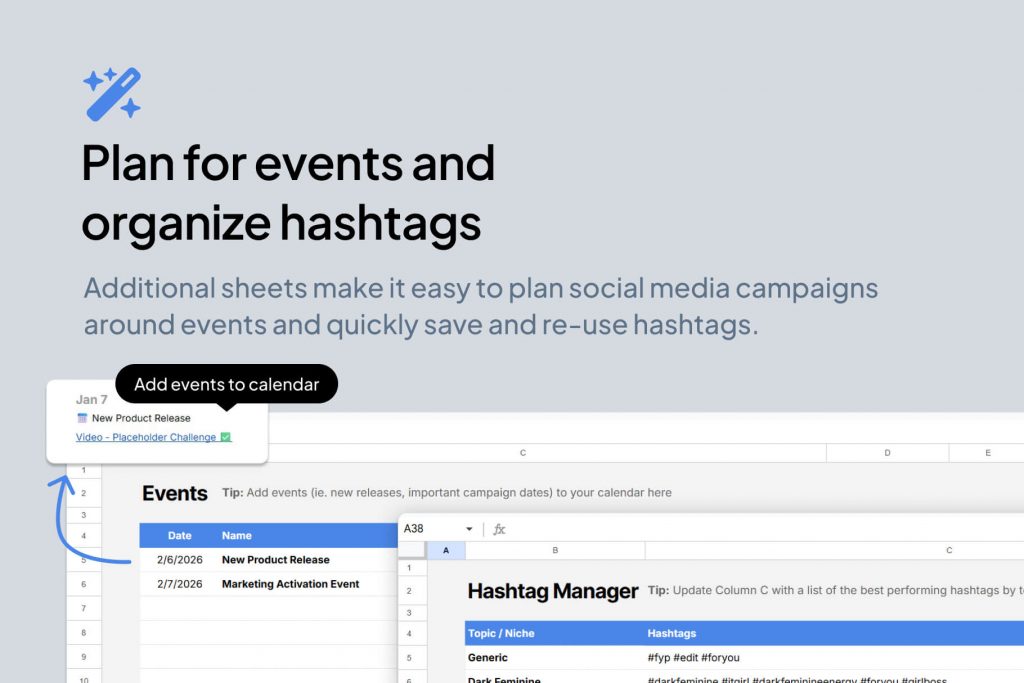
As an optional bonus feature, the “Events” sheet allows you to add reminders to your calendar for key milestones like product releases and in-person events, so you can plan social media campaigns around them.
7. (Optional) Save your best performing hashtags
Additionally, the “Hashtag Manager” sheet is a convenient place to save your best performing hashtag combinations so you can copy and paste directly on mobile devices without searching through your old posts every time.
How to create your own social media content planner in Google Sheets:
If you prefer to create your own social media content calendar from scratch, here’s the best setup for long-term use:
- Create Posts sheet: First, you’ll want to create a sheet for “Posts” with columns for key details like the caption, hashtags, and file links. You can include additional columns for things like collaborators.
- Create new sheets for ideas and top-performers: Once you’ve finalized the columns and ordering of the “Posts” sheet (don’t do this before, otherwise you won’t be able to copy posts between sheets), duplicate that sheet twice to create one sheet for a backlog of your ideas, and another sheet to save top-performing posts you plan to re-use. Optionally, you can add columns for tracking whether ideas have been used and/or how often you want to re-use the ‘evergreen’ posts you saved.
- Configure dropdowns: Using Google Sheets “data validation” feature, you can add dropdowns for accounts, topics/products, post formats, and more. We typically recommend using “Dropdown from range” and creating a separate “Dropdown” sheet (rather than the standard “Dropdown” option) so you can edit the available options directly in sheets without extra clicks.
- Setup the dynamic calendar: This is the tricky part, as you’ll first need to design a calendar layout in Google Sheets, and then add formulas to pull from the “Posts” sheet. The exact formula will vary greatly depending on the columns and layout of your sheets,but generally speaking you’ll be using FILTER, VLOOKUP, or XLOOKUP. The formulas can get quite complex if you create a dynamic calendar or want to be able to filter Posts by account / channel / etc. (if you want to skip fiddiling with Google Sheets formulas, this is all built-in to our Content Calendar spreadsheet template, available here.) Pro tip: Use the HYPERLINK function to directly link to the corresponding rows in the Posts sheet.
- (Optional) Add events sheet and hashtag manager: If you’d like to go one step further, you can create additional sheets for tracking important events (this will require modifying the formulas or adding an extra row to the Calendar tab to also pull from the Events tab) or saving the best hashtag combinations.
Take your social media content strategy to the next level
A well-designed social media content calendar is an essential tool for any marketer, whether you’re an individual growing your own following or business, or an agency managing multiple clients.
Using your content calendar regularly will help you post more consistently, become more thoughtful in your marketing strategy, and get more analytical about what works and what doesn’t. Most critically, maintaining a social content calendar will save you valuable time.
There are tons of options out there to choose from, but if you’re like us, you might find most software tools overly complicated yet rigid, and most spreadsheets too clunky for daily use. This ready-to-use template strikes the perfect balance with a clickable, dynamic calendar interface and the flexibility and ease of use of Google Sheets. We designed this GSheets content calendar to make it effortlessly simple to save ideas, plan content, and copy posts directly from your phone or other devices.
Want a ready-to-use Social Content Calendar for Google Sheets? Download the template now!